Effi gives you two ways to create an event: start from scratch with a blank canvas, or use a pre-built template with scenes and elements already configured. Both options are available directly from your Dashboard.
Starting From Your Dashboard
When you log in, you'll land on the Dashboard where you can see all your previous events and create new ones.
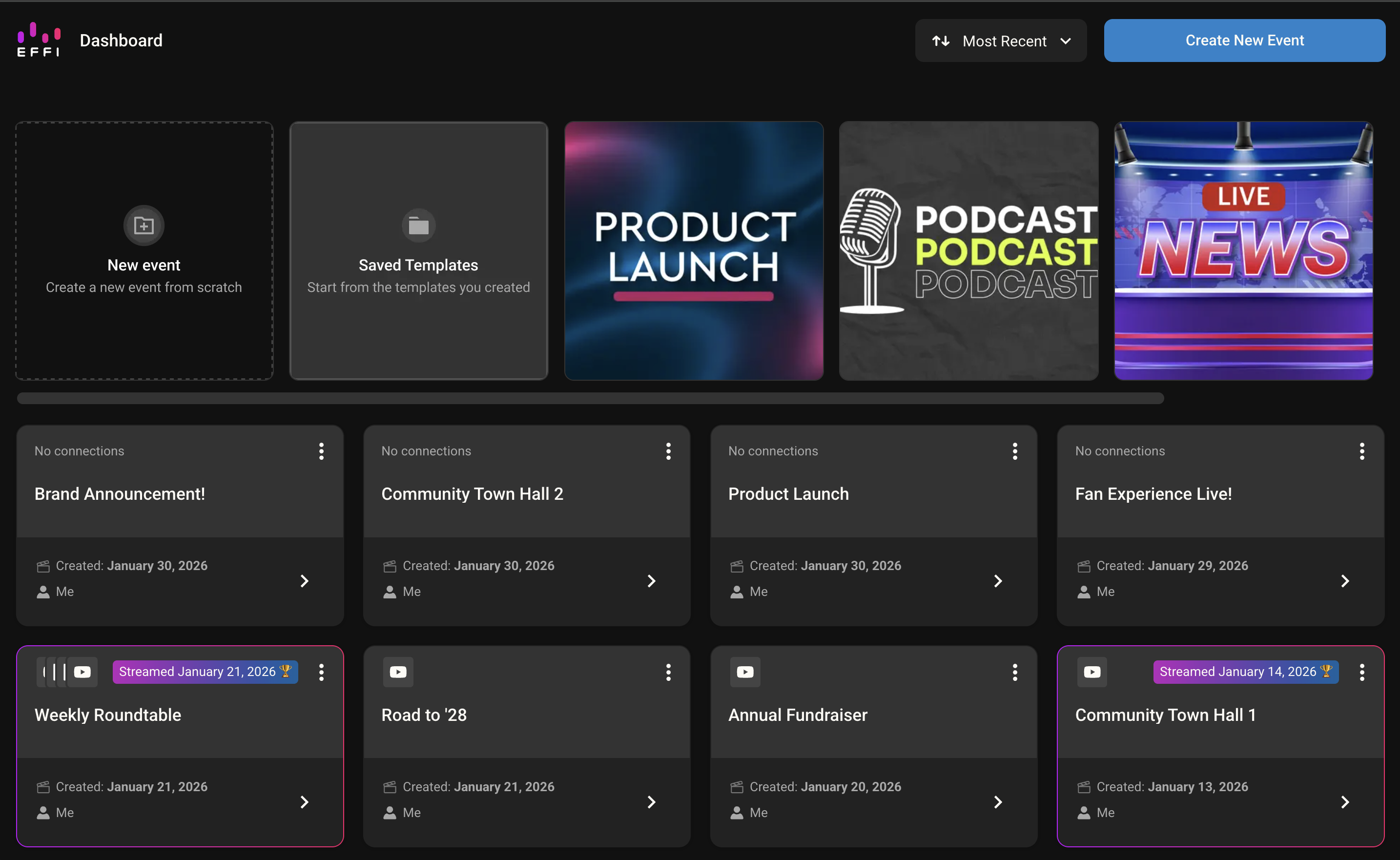
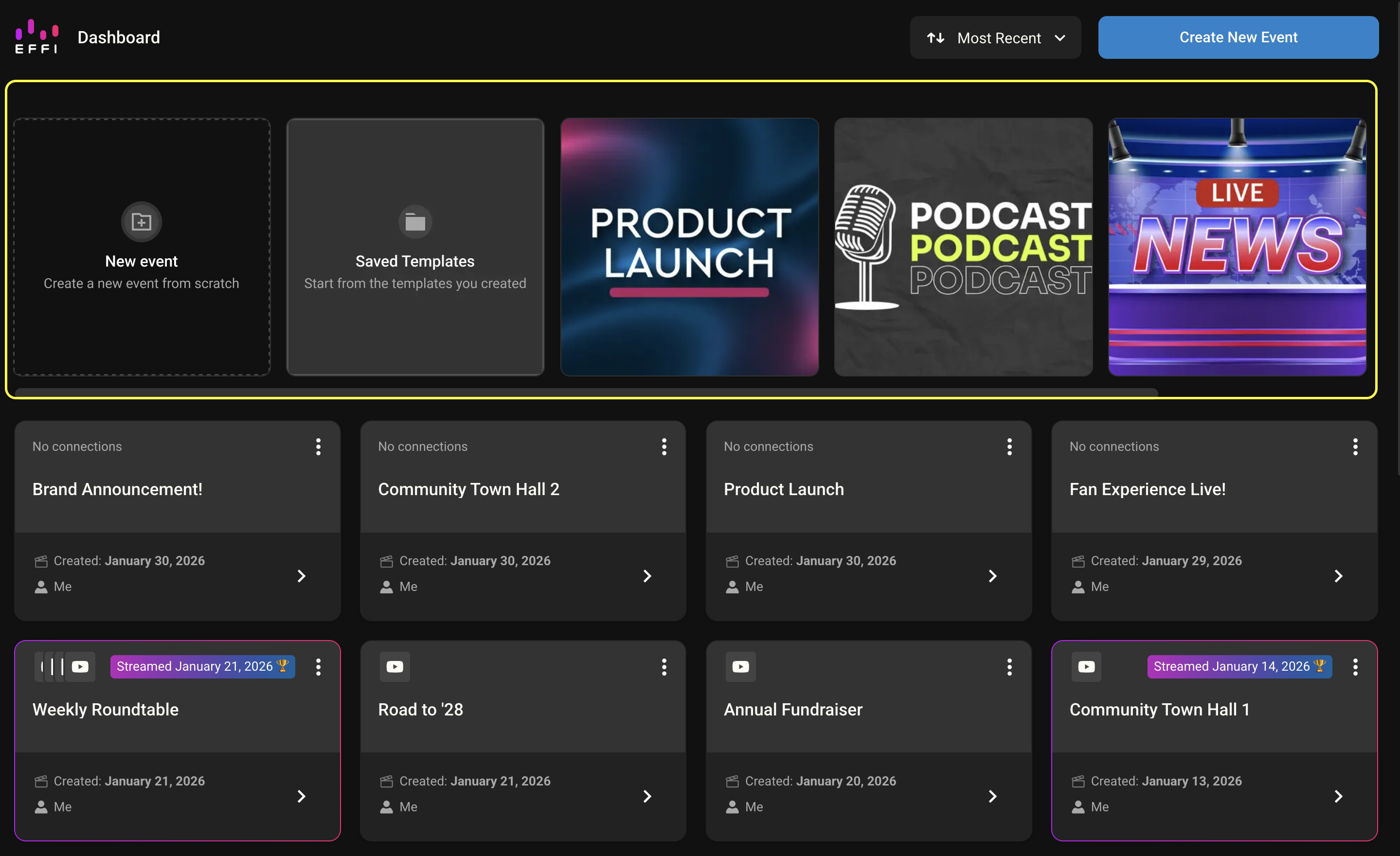
At the top of the Dashboard you'll see a scrollable row with two options on the left — New Event and Saved Templates — followed by Effi's available pre-designed templates.
- Choose New Event to build your event from scratch
- Choose Saved Templates to start from a template you've previously saved
- Or select any of the pre-designed template cards to start from one of Effi's templates
Option 1: Create an Event From Scratch
1. Click New Event from the Dashboard.
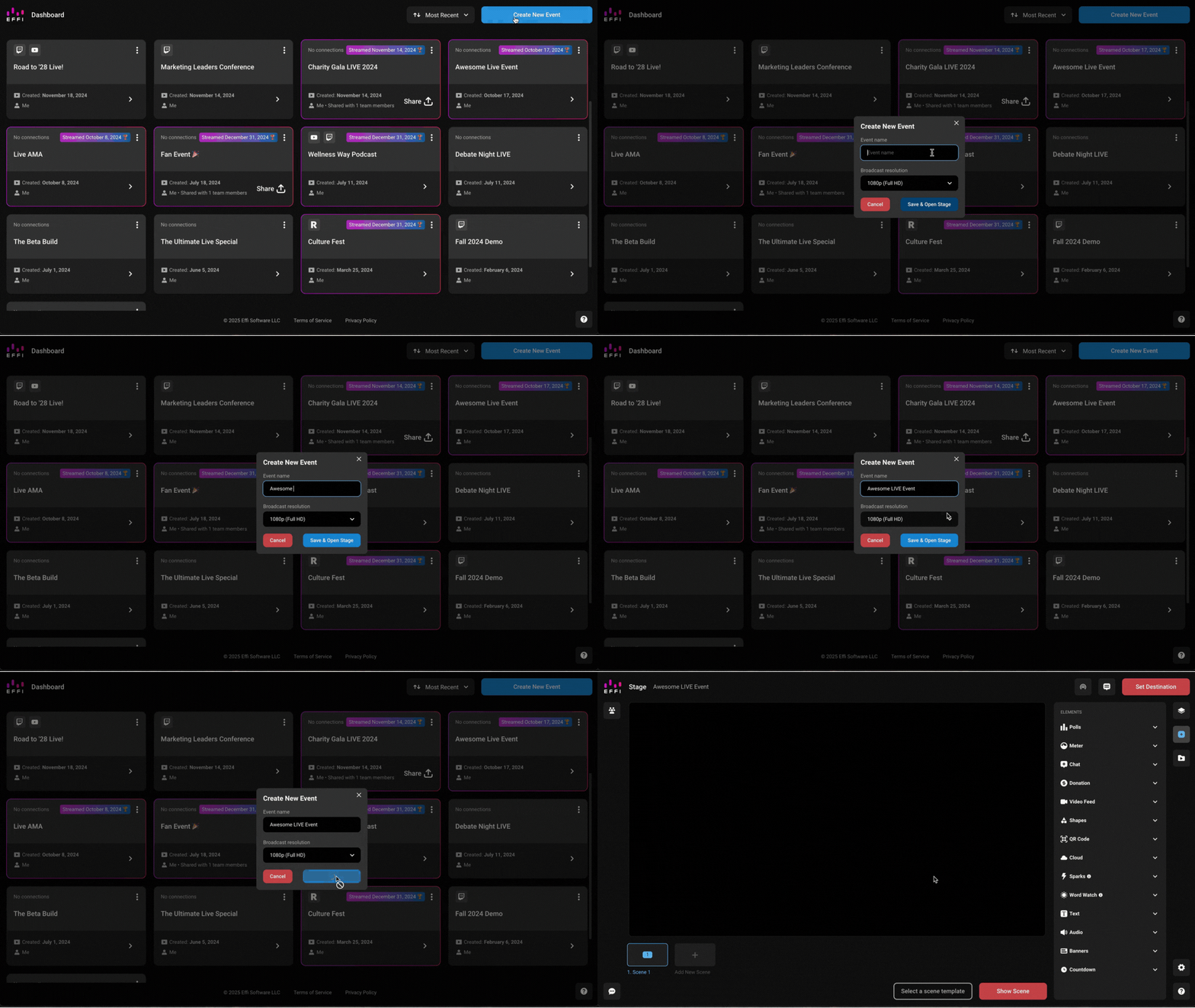
2. Give your event a name and select a broadcast resolution from the dropdown. The default is 1080p (Full HD). Your event name is for internal use only and won't be visible to your audience. You can change it later.
3. Click Save & Open Stage.
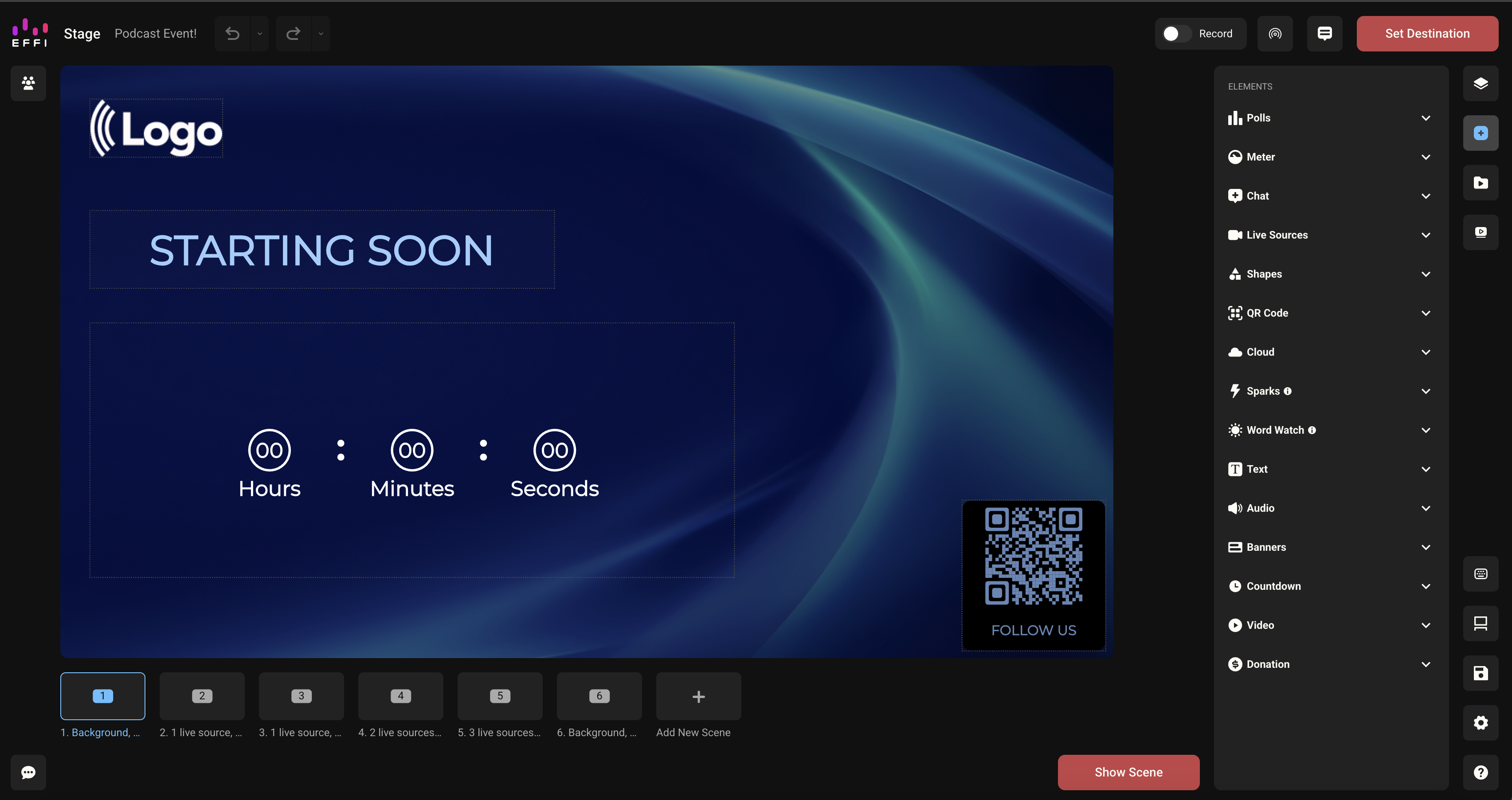
Your event will be created and you'll be taken directly to Stage — Effi's live production environment — where you'll build, design, and produce your event.
Option 2: Create an Event From a Template
Templates give you a head start with pre-built scenes, layouts, and interactive elements already configured — the fastest way to get a polished event without building everything from scratch.
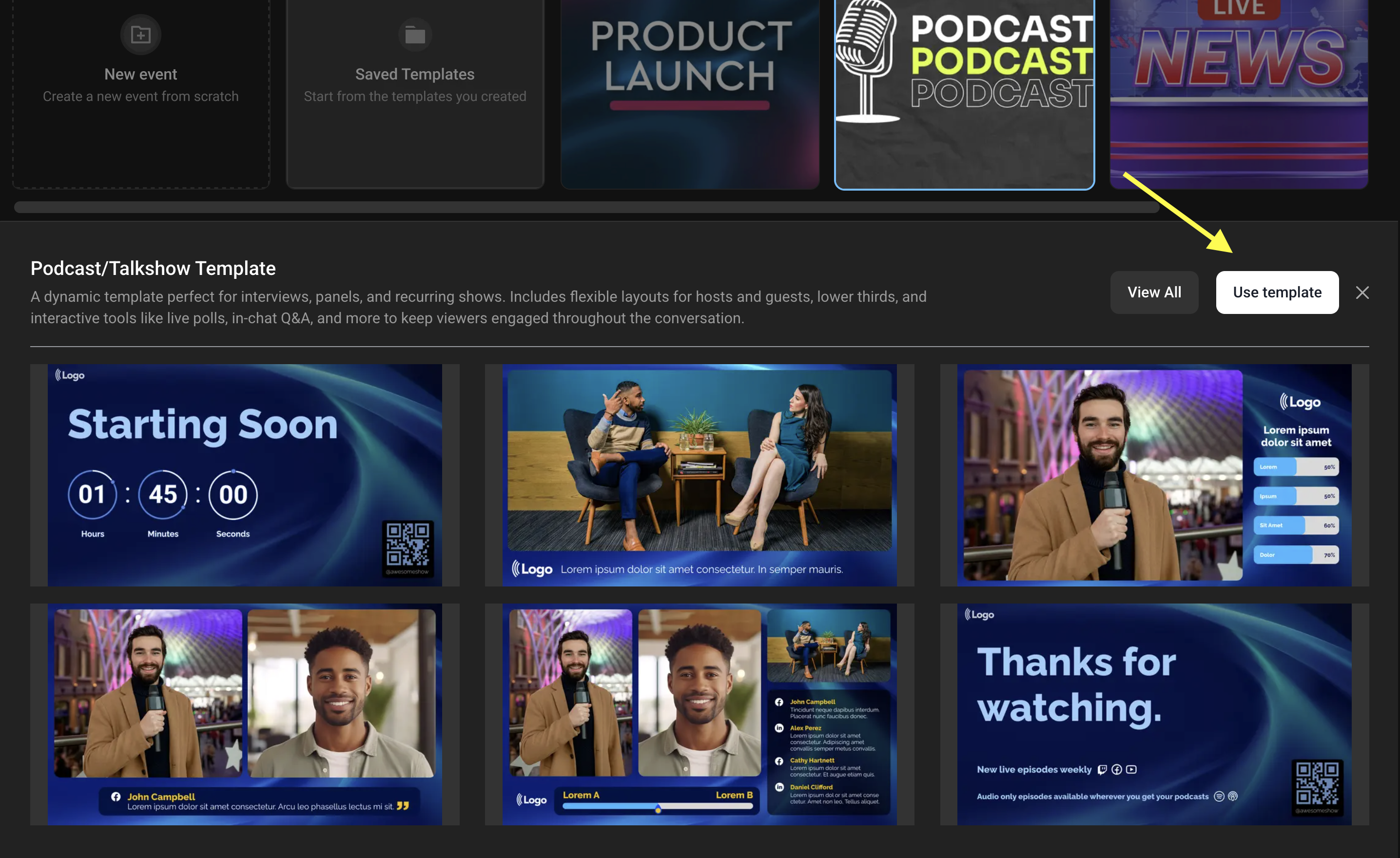
1. From the Dashboard, click on any template card in the top row to select it.
2. A preview panel will appear below the carousel showing the template name, a description of what it's designed for, and a preview of some of its scenes.
To see all scenes in the template, click View All.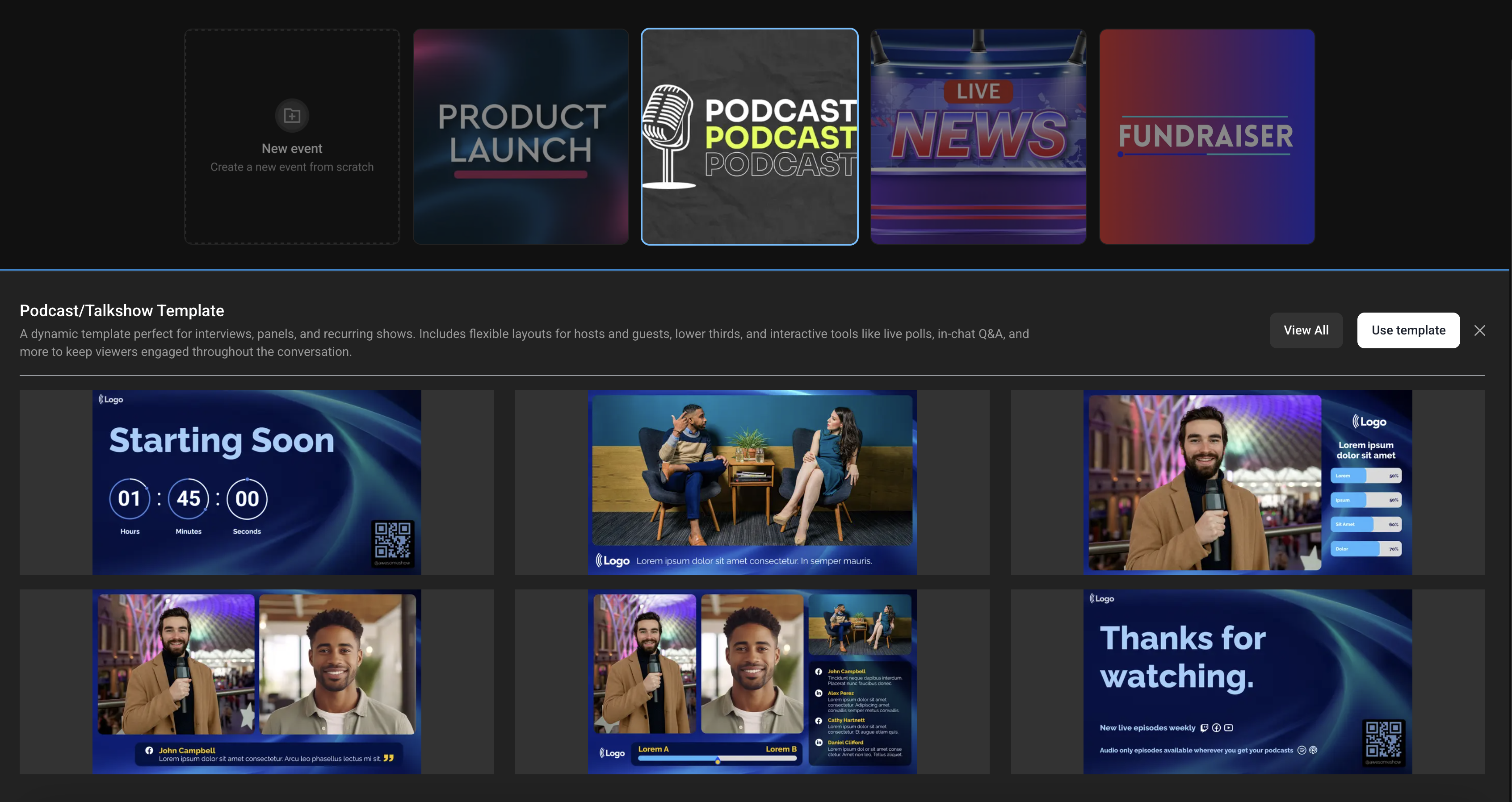
3. Browse the scenes using the left panel and the arrows to confirm the template suits your event.
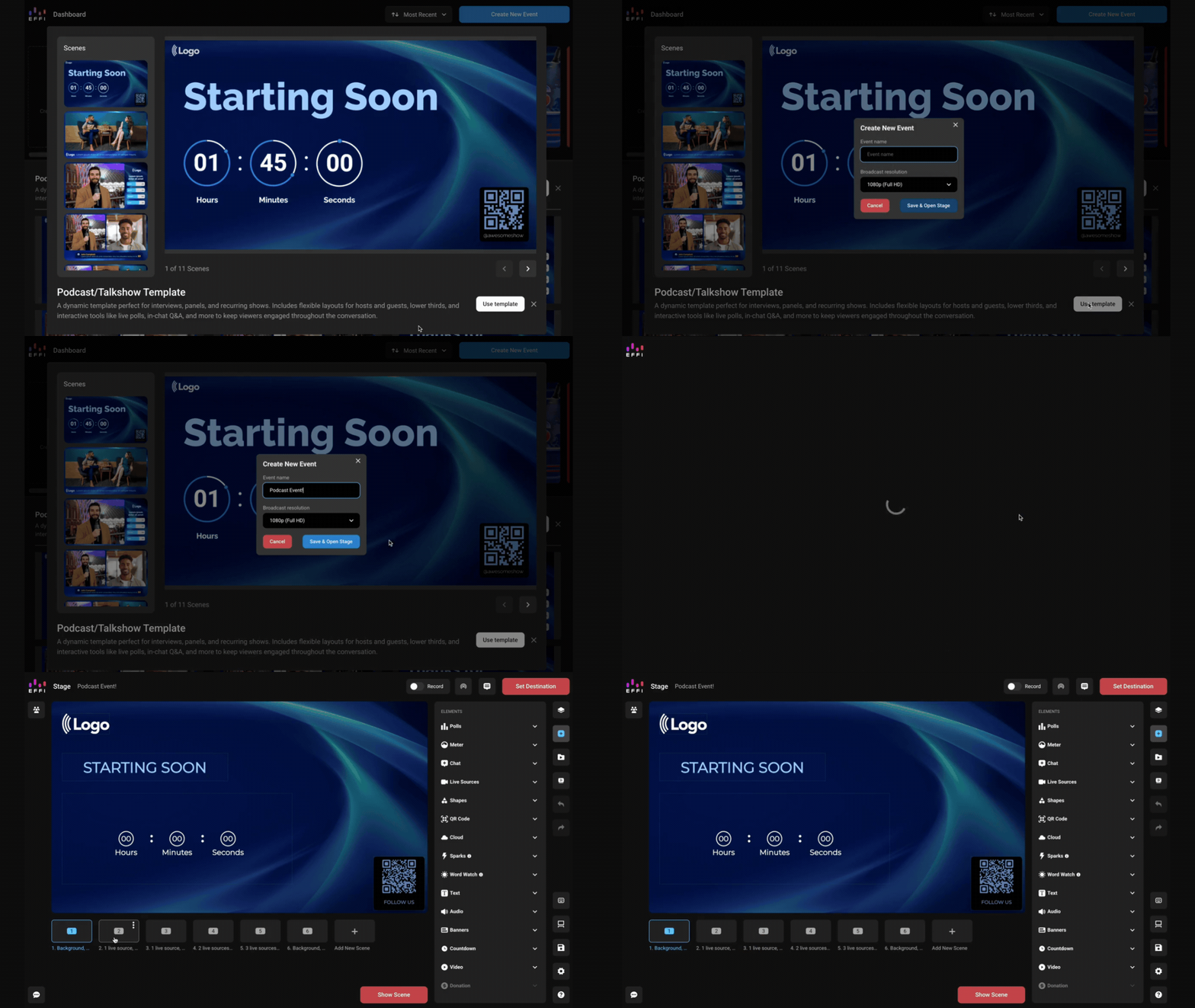
4. When you're ready, click Use Template. This button is available in both the preview panel and the View All panel.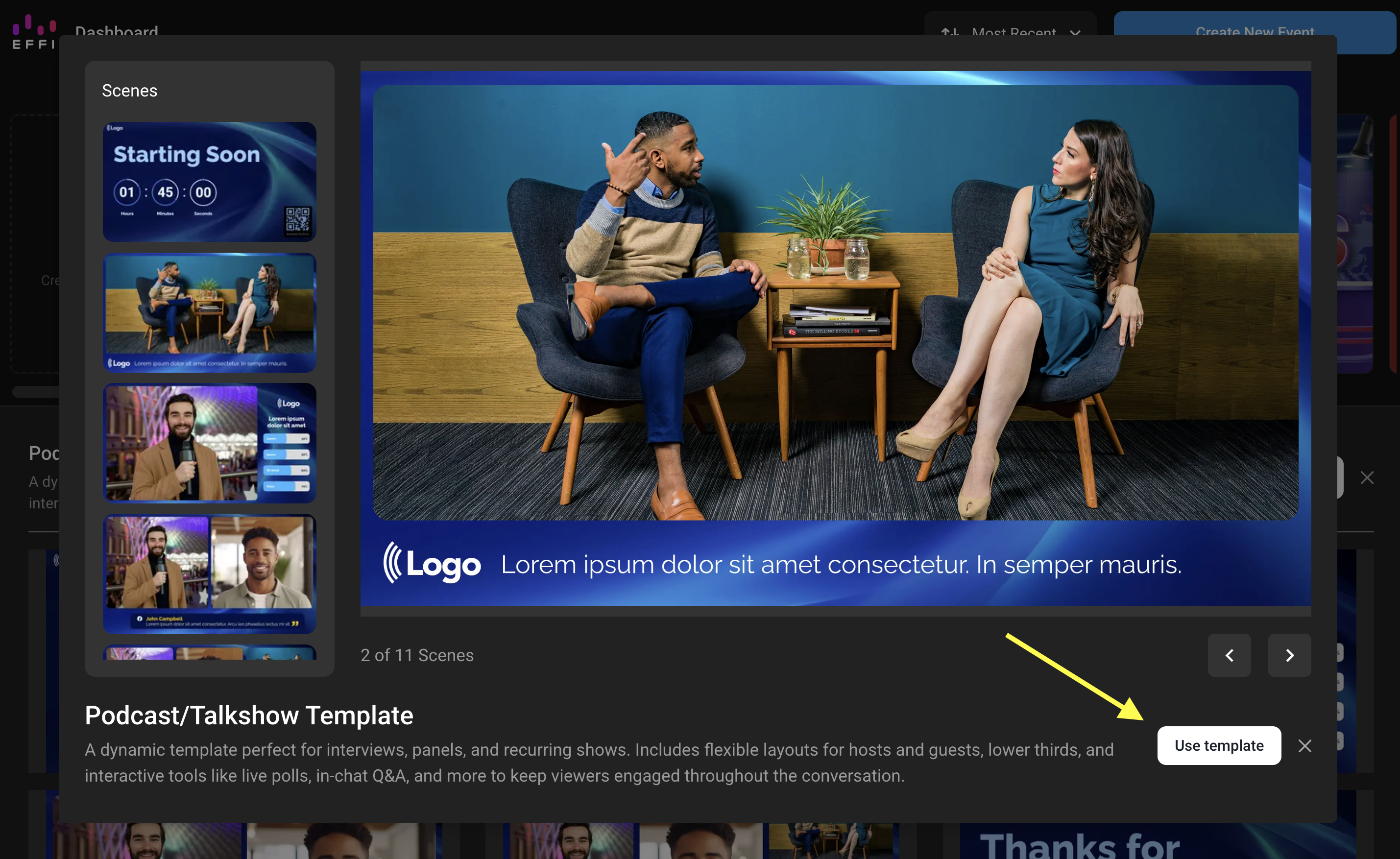
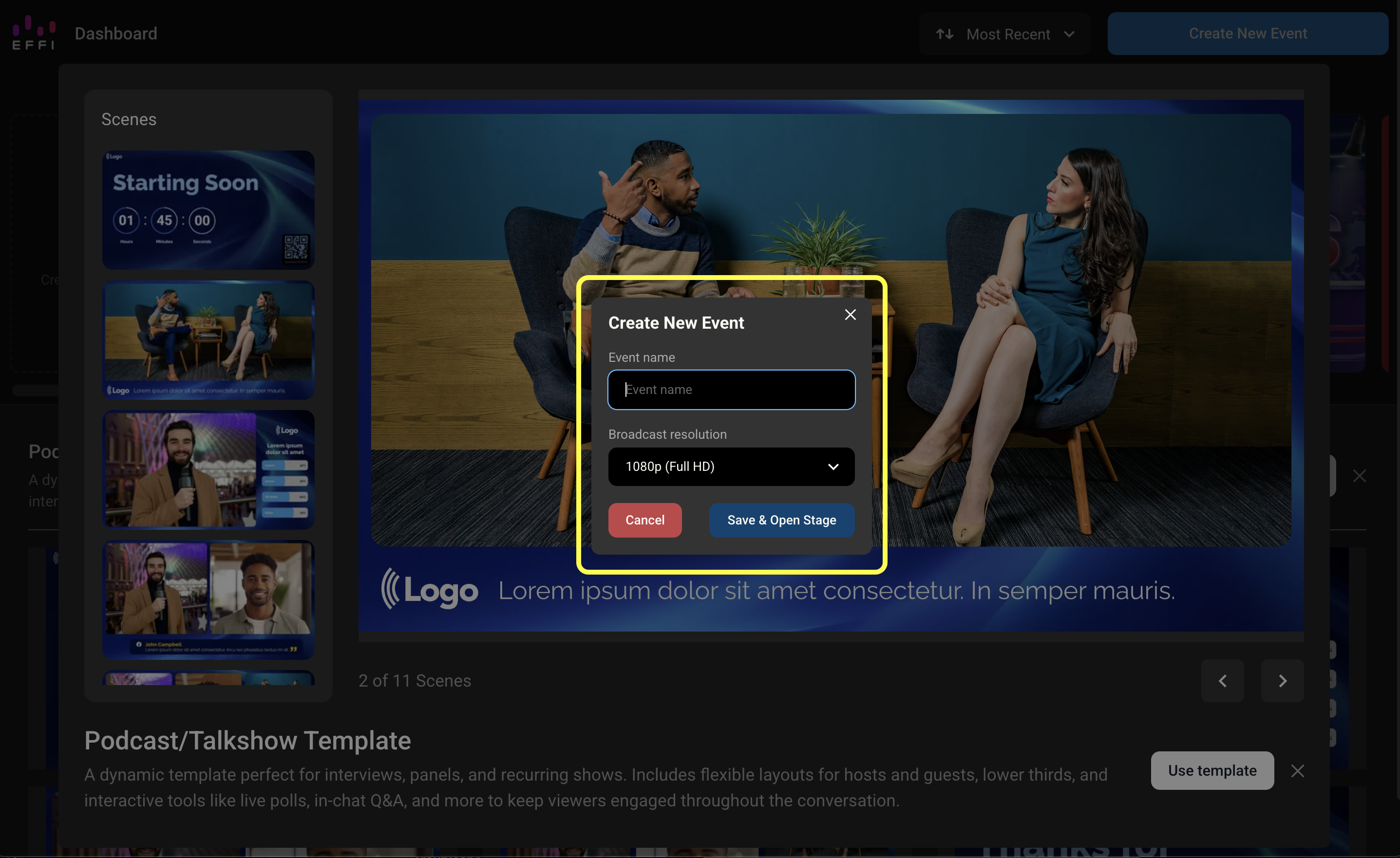
5. Enter your event name and select a broadcast resolution, then click Save & Open Stage.
Your event will open in Stage with the template's scenes pre-loaded at the bottom of the screen, ready for you to customize.
Was this article helpful?
That’s Great!
Thank you for your feedback
Sorry! We couldn't be helpful
Thank you for your feedback
Feedback sent
We appreciate your effort and will try to fix the article