After inviting a guest, the next step is placing them into the scenes you want them to appear in — guests won't show up anywhere in your broadcast until they're added to a scene. This article covers adding a video feed, choosing or building a layout, and assigning your guests to it.
Adding a Video Feed to Your Scene
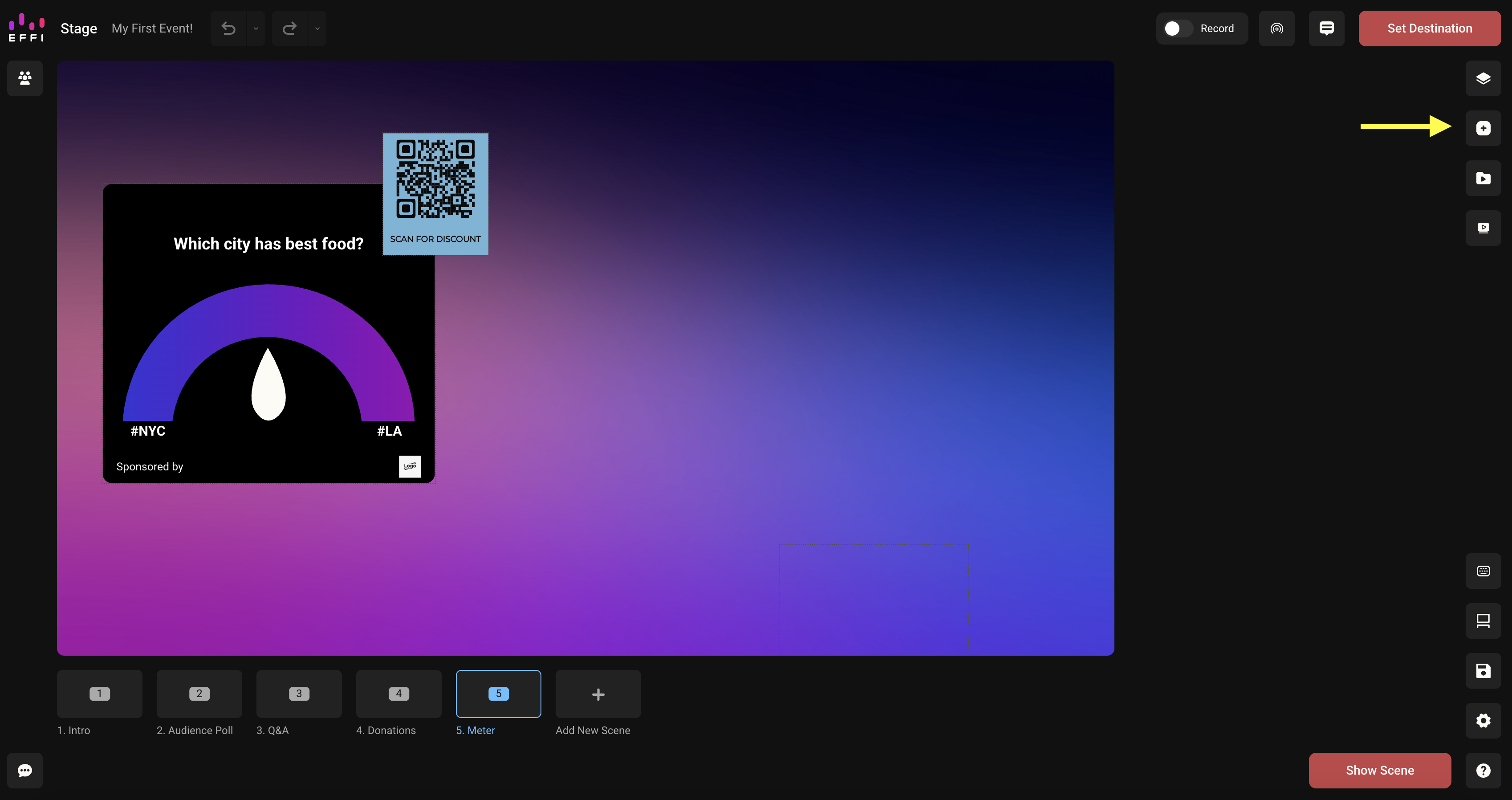
- From your list of scenes, choose the one you'd like to add a guest to, then click the elements button in the top-right menu.
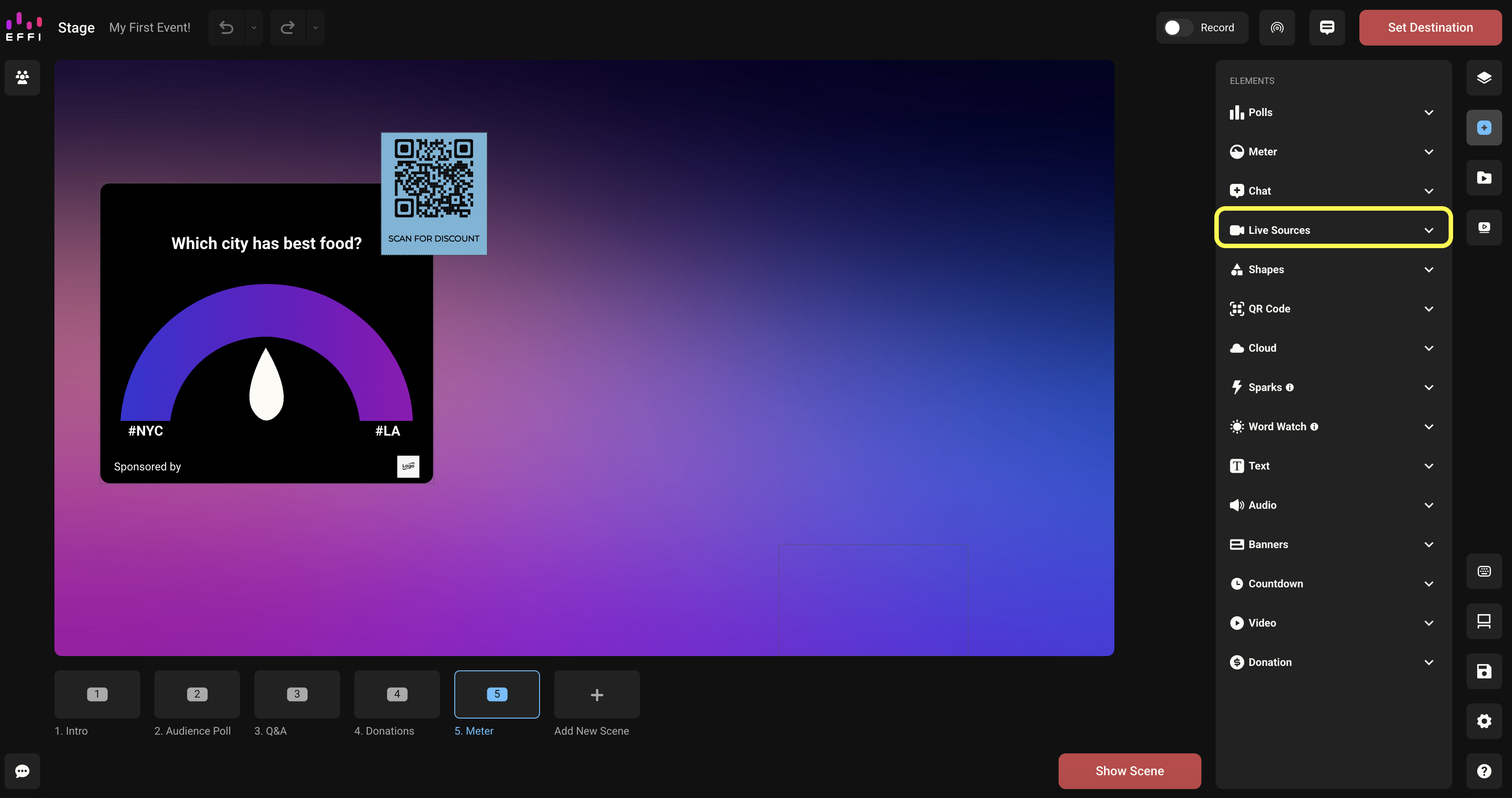
- Select Live Sourcesfrom the flyout.
Choosing a Layout
Pick a layout style based on how many guests you want in the scene. Once you select a style, it's added to your scene preview.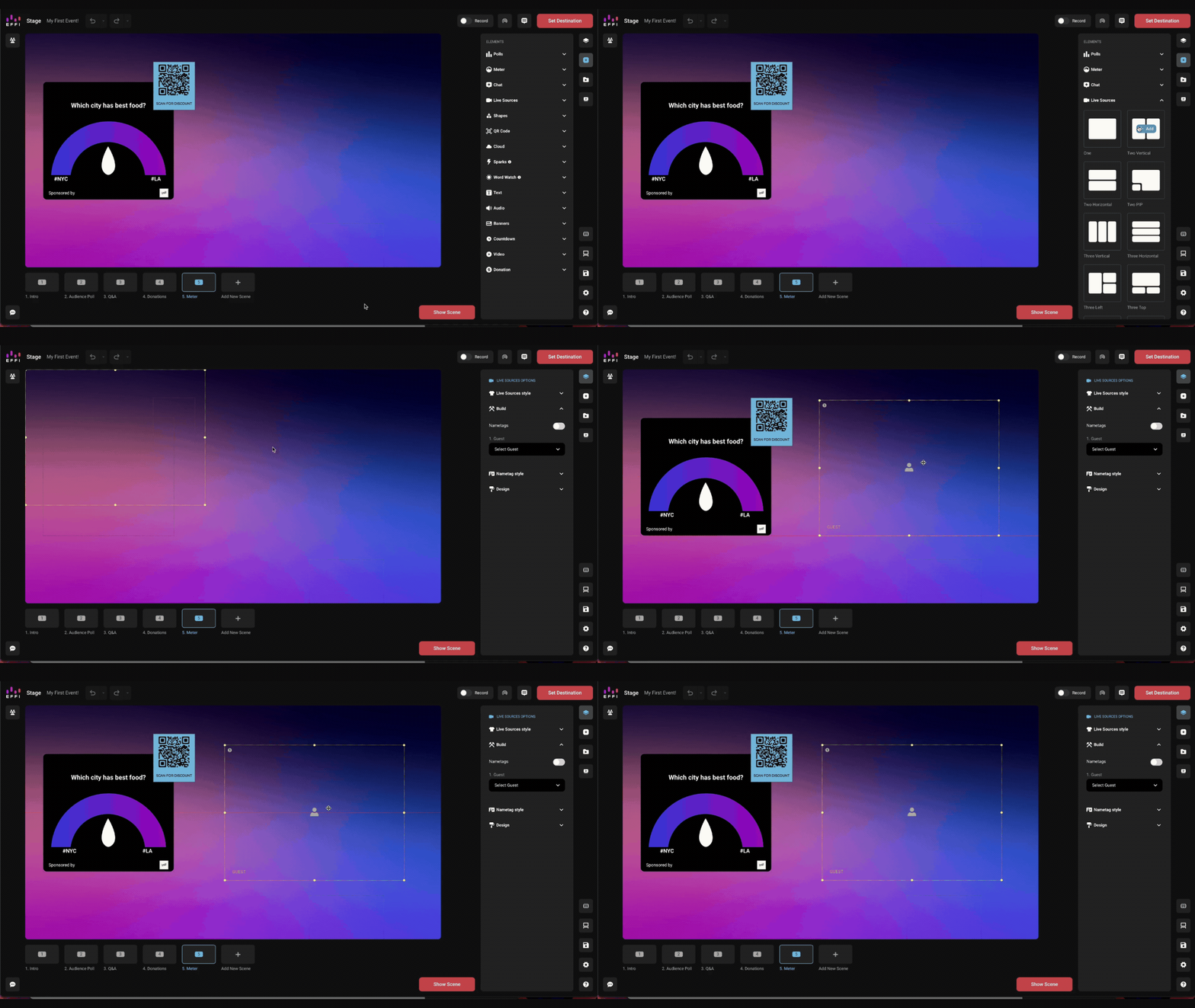
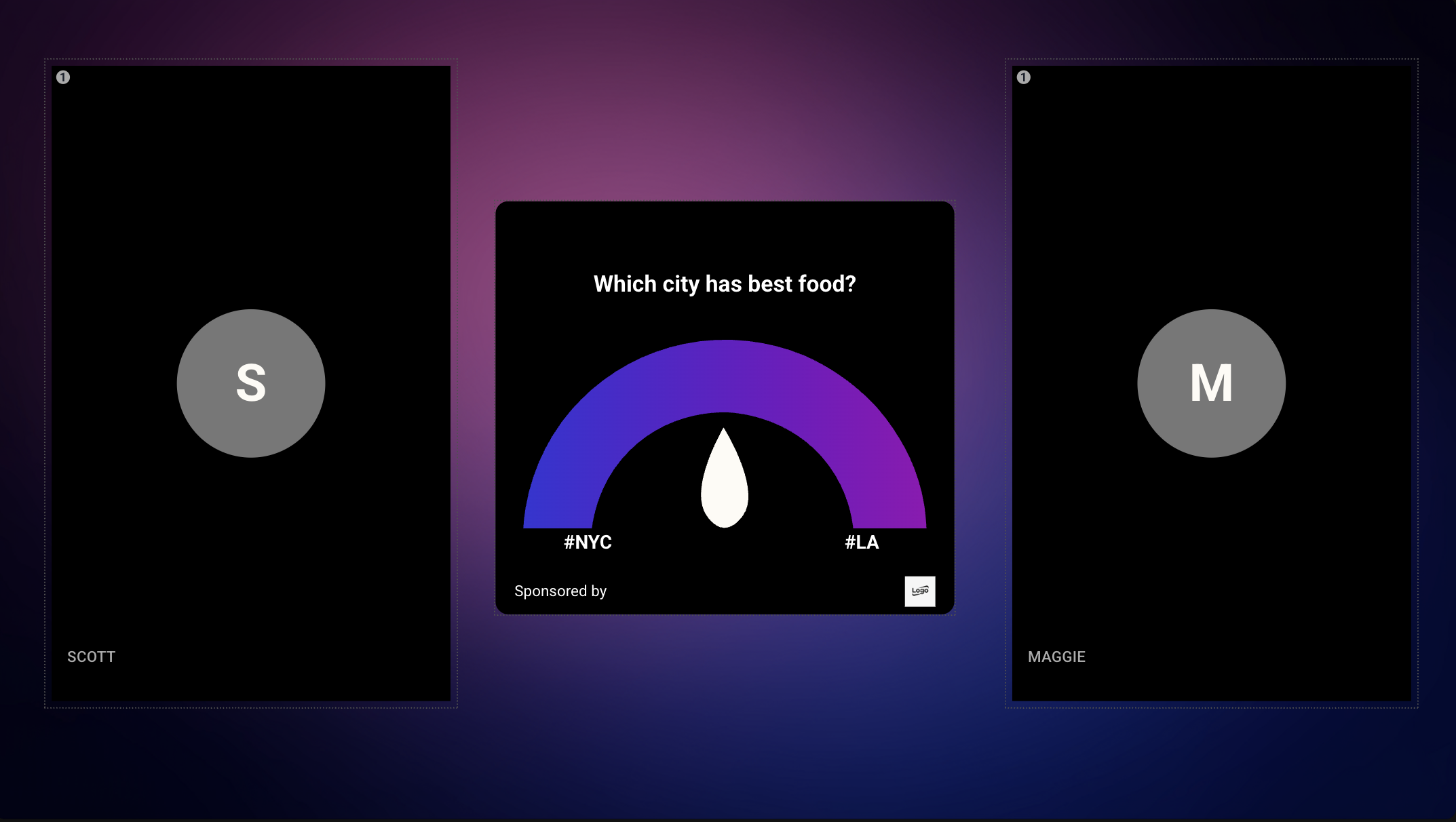
Prefer not to use a preset layout? You can skip it and add individual video feed windows instead, placing and resizing each one exactly where you want it — guest on the left, guest on the right, with a meter in between, for example, or a guest tucked into an overlay.
Assigning Guests to the Layout
Once a video feed has been added to your scene, a Build option appears in the right-hand menu — that's where you choose which guest fills that feed.
Single Guest
Select the guest's name from the dropdown to place them in the feed.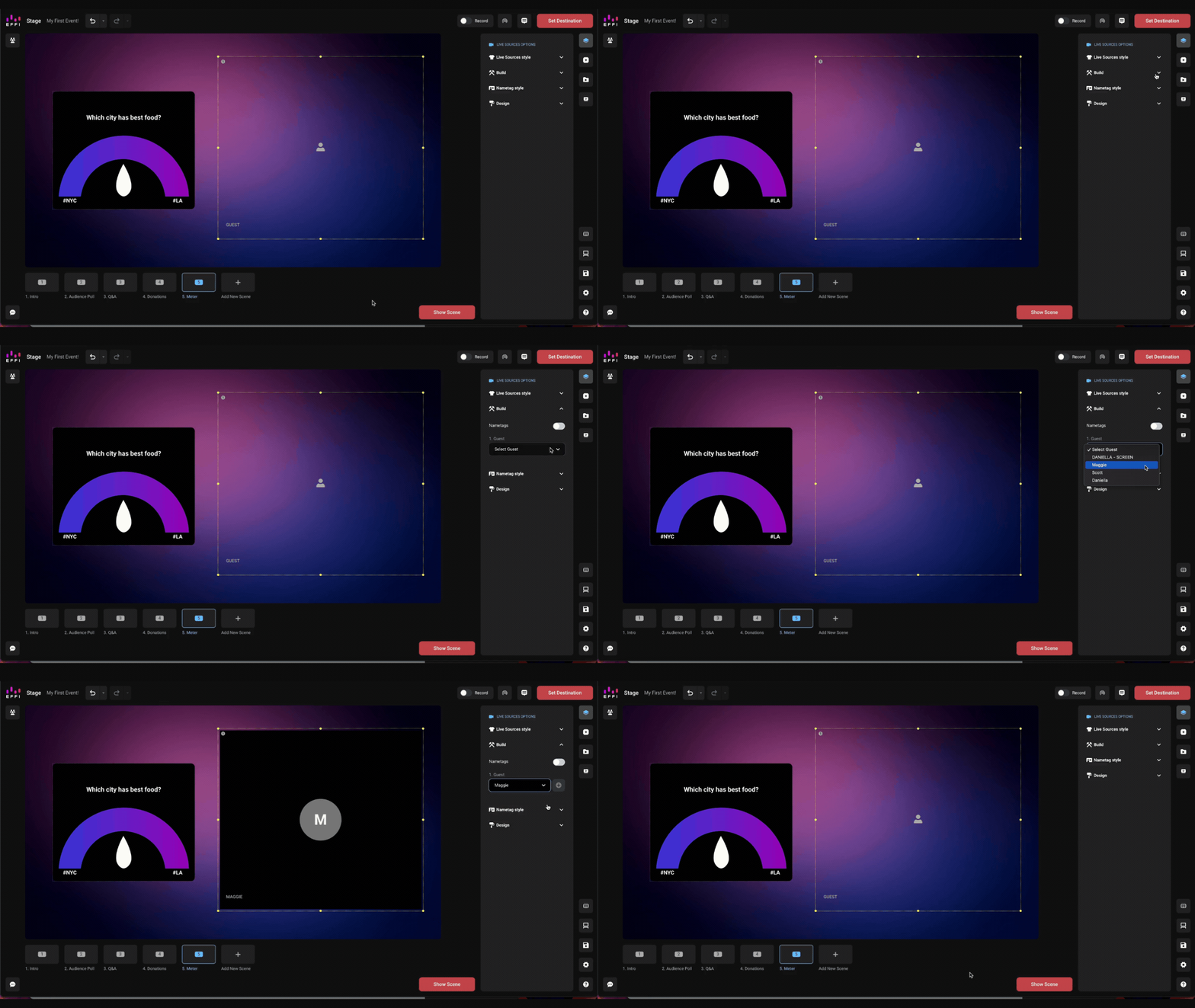
Multiple Guests
With a multi-slot layout, each window is numbered. Find the number of the box you want a guest in, and assign them there.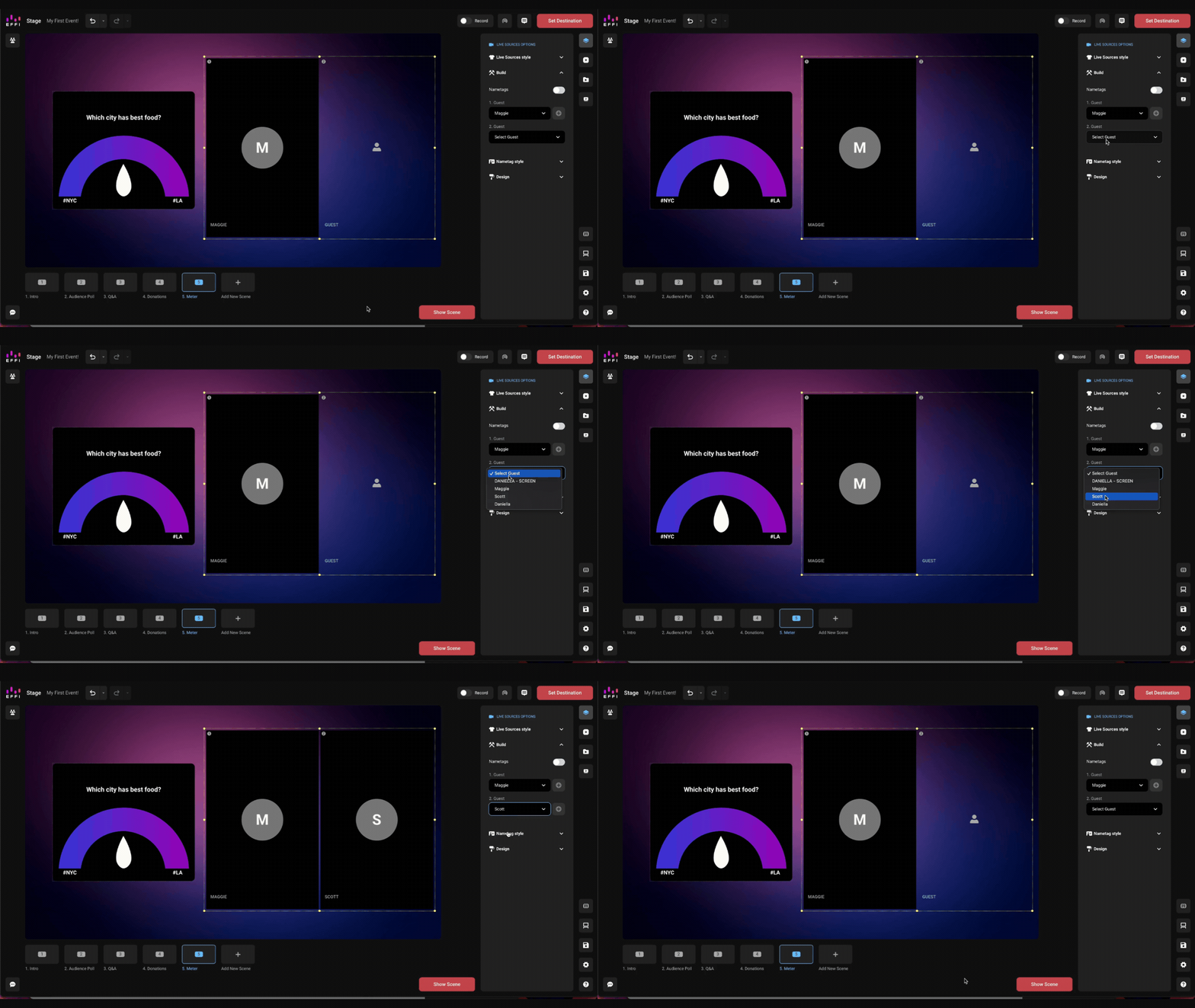
Was this article helpful?
That’s Great!
Thank you for your feedback
Sorry! We couldn't be helpful
Thank you for your feedback
Feedback sent
We appreciate your effort and will try to fix the article