Every guest spends their time in the Greenroom — it's the one space they're in from the moment they join to the moment your broadcast ends. What changes is its state: waiting, Backstage, or Live, depending on where things stand in your show. This article covers what guests see and can do throughout, and how to remove a guest if you ever need to.
What Guests See in the Greenroom
Whatever state it's in, the Greenroom gives guests a consistent set of tools: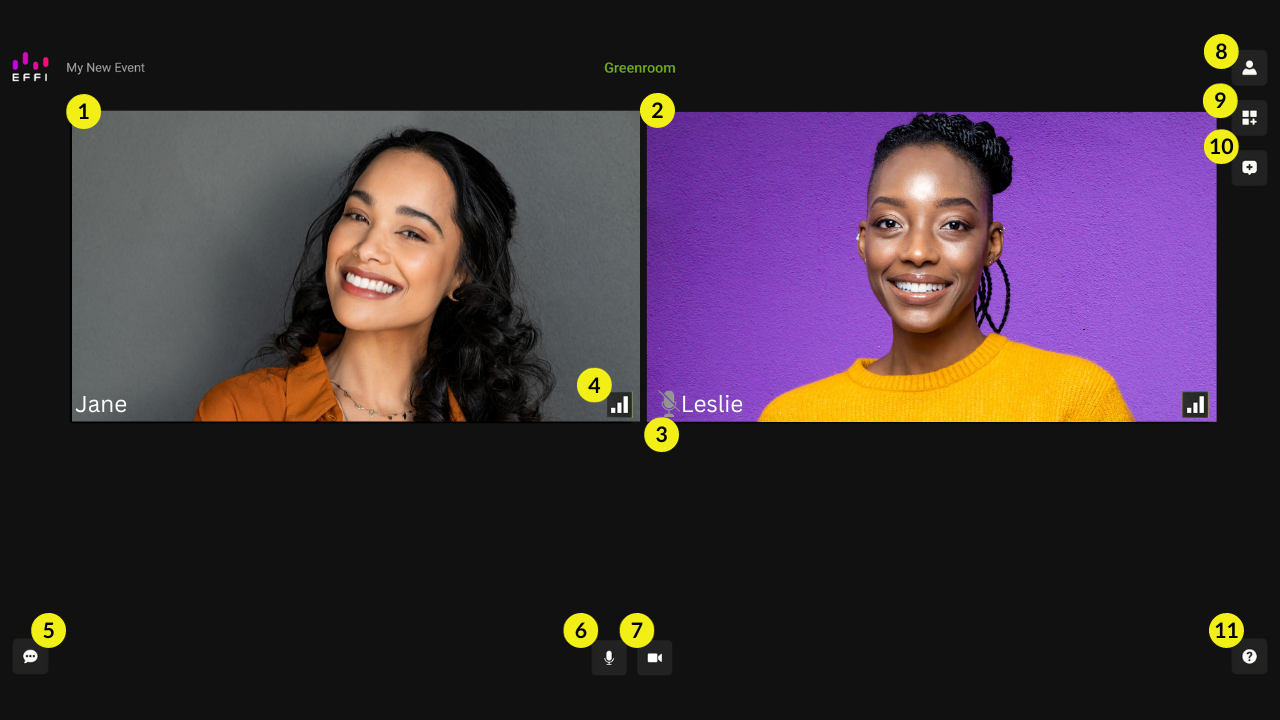
- Guest video feeds: guests can see their own feed and everyone else's in the Greenroom.
- Muted indicator: a small icon appears next to a guest's name when they're muted.
- Connection quality: a signal meter lets guests keep an eye on their connection and get a heads up if it's slipping.
- Guest Chat: a private text chat visible only to guests and hosts — never to your audience.
- Mic and camera controls: guests can mute/unmute and turn their camera on or off. With the camera off, an avatar placeholder takes its place.
- Guest settings: guests can edit their own info and switch camera or mic sources.
- Live element preview: if a poll or meter is live in a scene, guests see it update in real time.
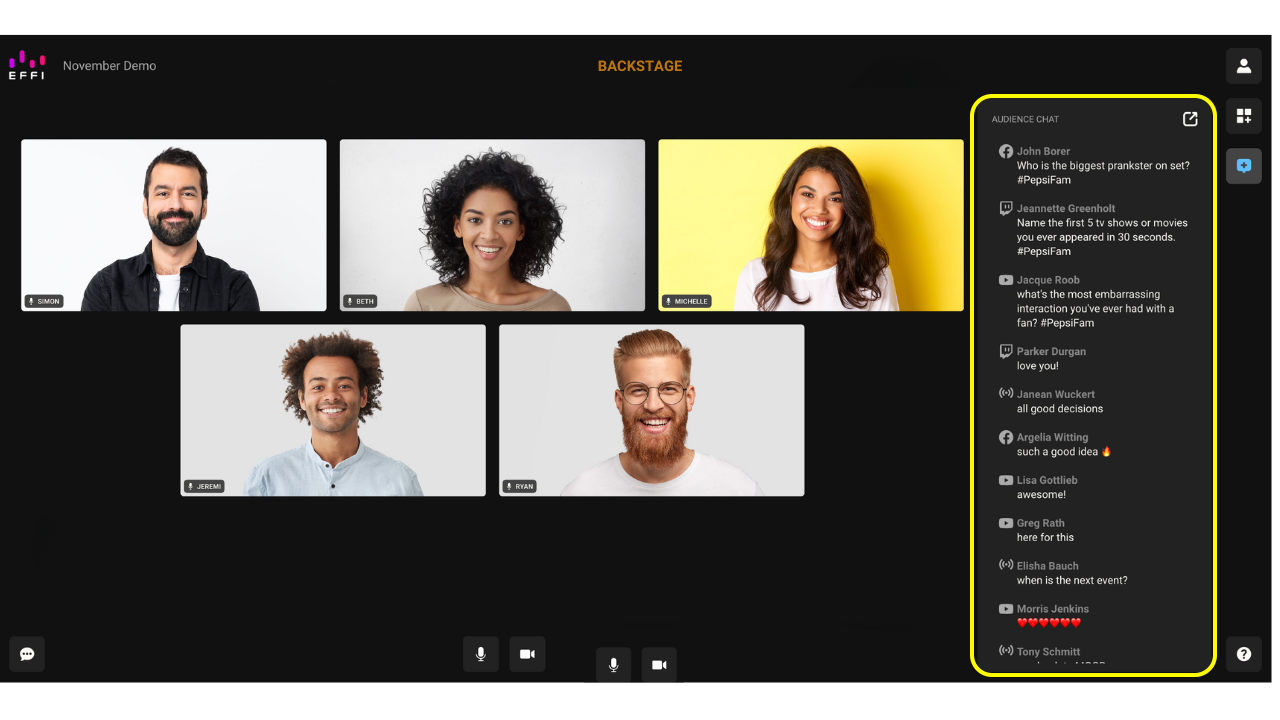
- Audience Chat: guests can see incoming messages from every platform you're streaming to.
- Help: guests have access to help articles and support without leaving the Greenroom.
The Three Greenroom States
Waiting
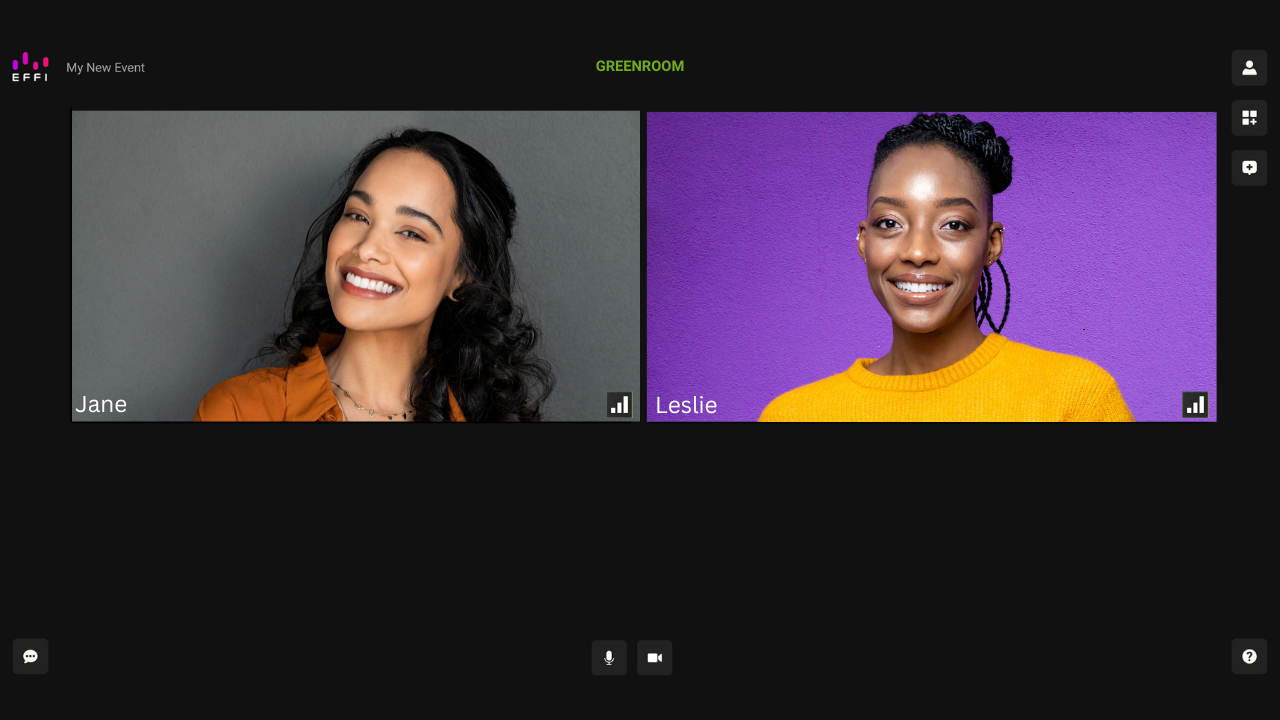
Before your broadcast goes live, guests sit in the general Greenroom, getting set up and waiting for you to begin.
Backstage
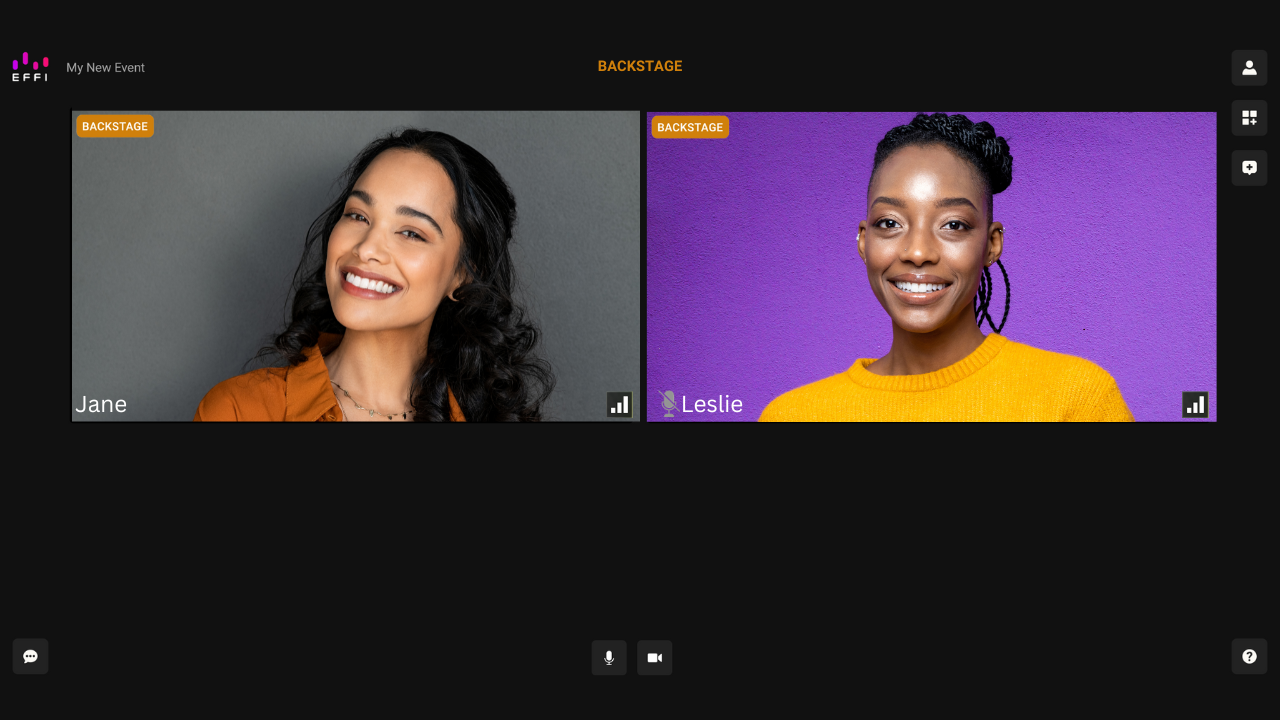
Once you go live, guests are in the Backstage state. They're connected and ready, but not yet visible to your audience — a "Backstage" label and badge make this clear both to them and to everyone else in the Greenroom. While Backstage, they will also be able to see the full live event.
Live
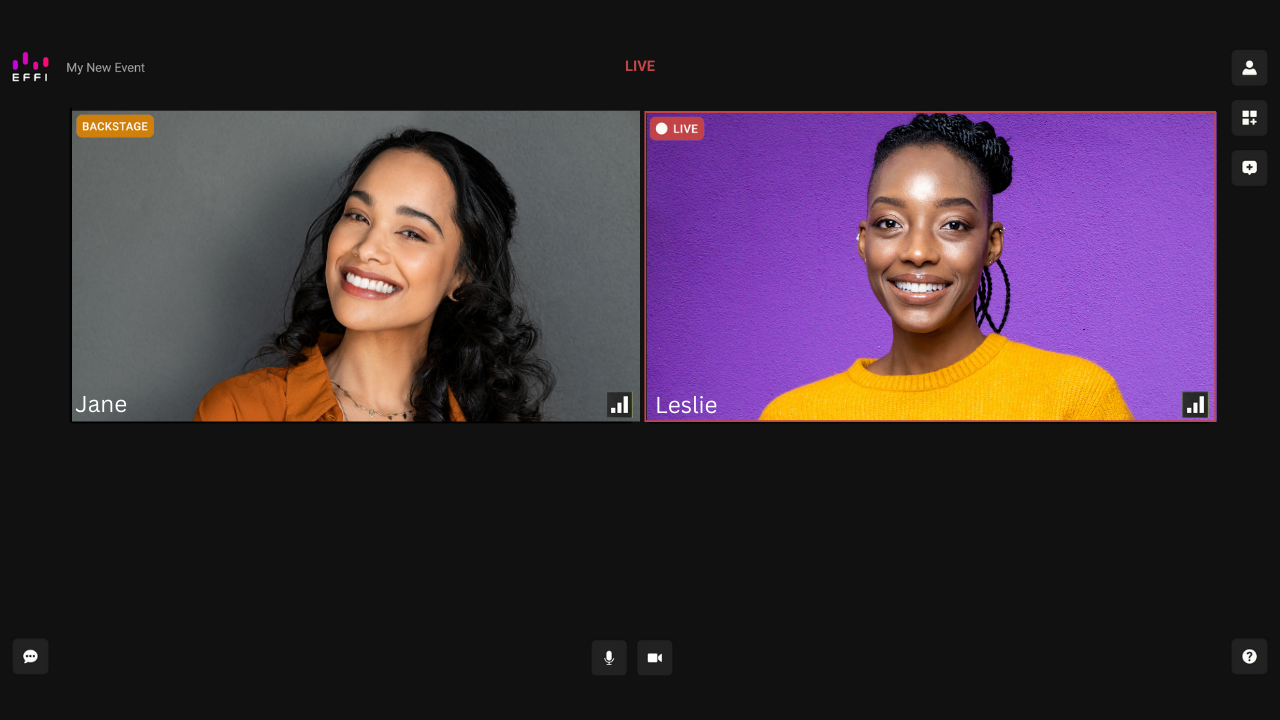
When a guest's scene goes live, their badge switches to "Live," letting them — and everyone else in the Greenroom — know the audience can now see and hear them.
What Guests Can Do
Guests aren't just watching — they can stay engaged with you, each other, and your audience the whole time they're in the Greenroom.
- See other guests: including which of them are currently live, once your broadcast has started.
- Chat privately: using Guest Chat, visible to everyone in the Greenroom and to hosts on Stage.
- See Audience Chat: every incoming message from the platforms you're streaming to.
- See live elements: reacting in real time to polls, meters, and other live elements without needing a second screen.
- Get help: access support without ever leaving the Greenroom.
- Exit the Greenroom: guests can leave whenever they're ready — it's worth asking them to check with you first, in case you still need them.
Viewing Audience Chat
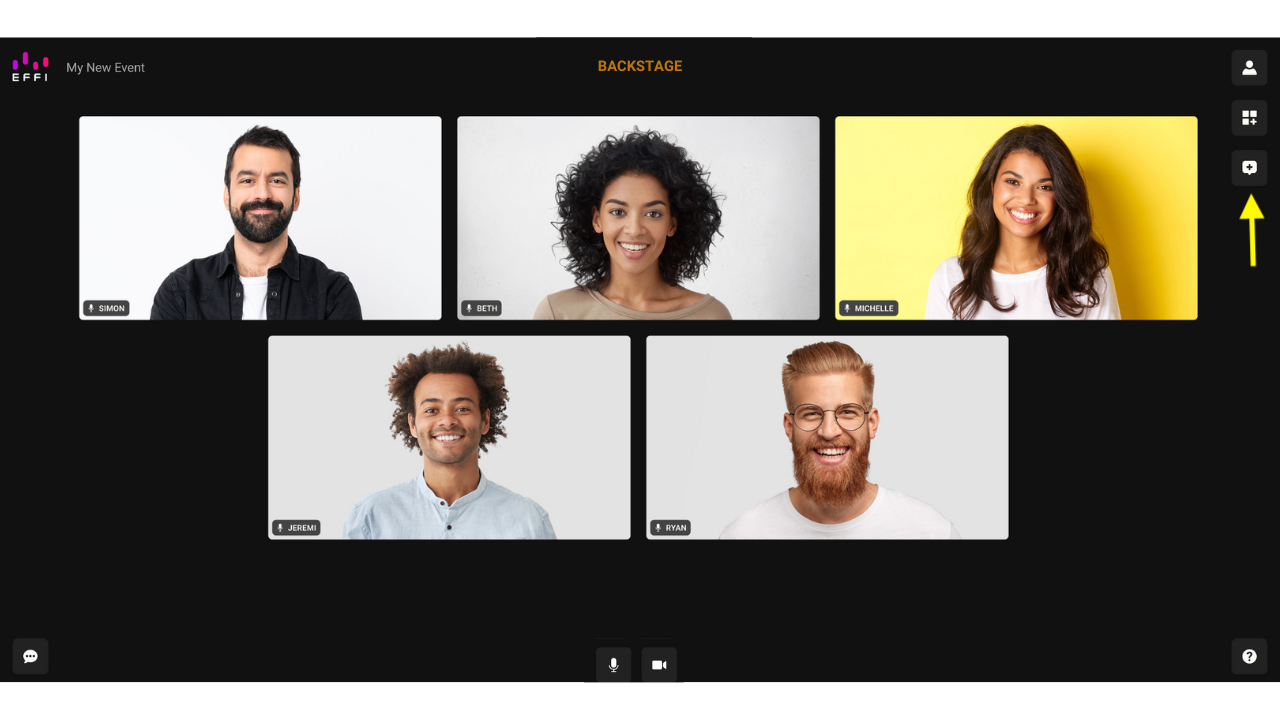
Guests can open Audience Chat right from the Greenroom to follow along with what viewers are saying.
- Click the Audience Chat icon.
- Incoming messages from your audience appear in real time.
Removing a Guest
Whether a guest is waiting, Backstage, or Live, removing them works the same way.
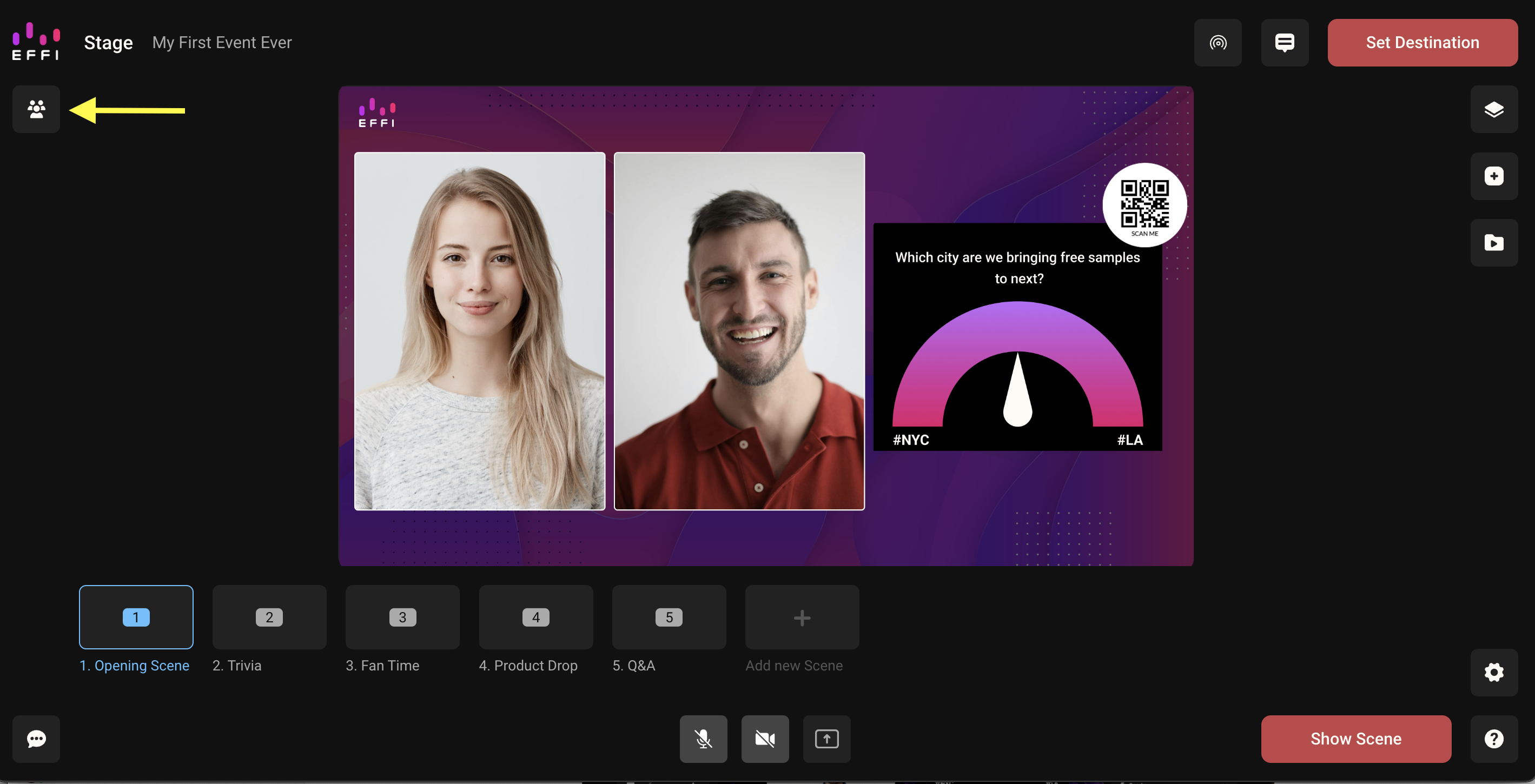
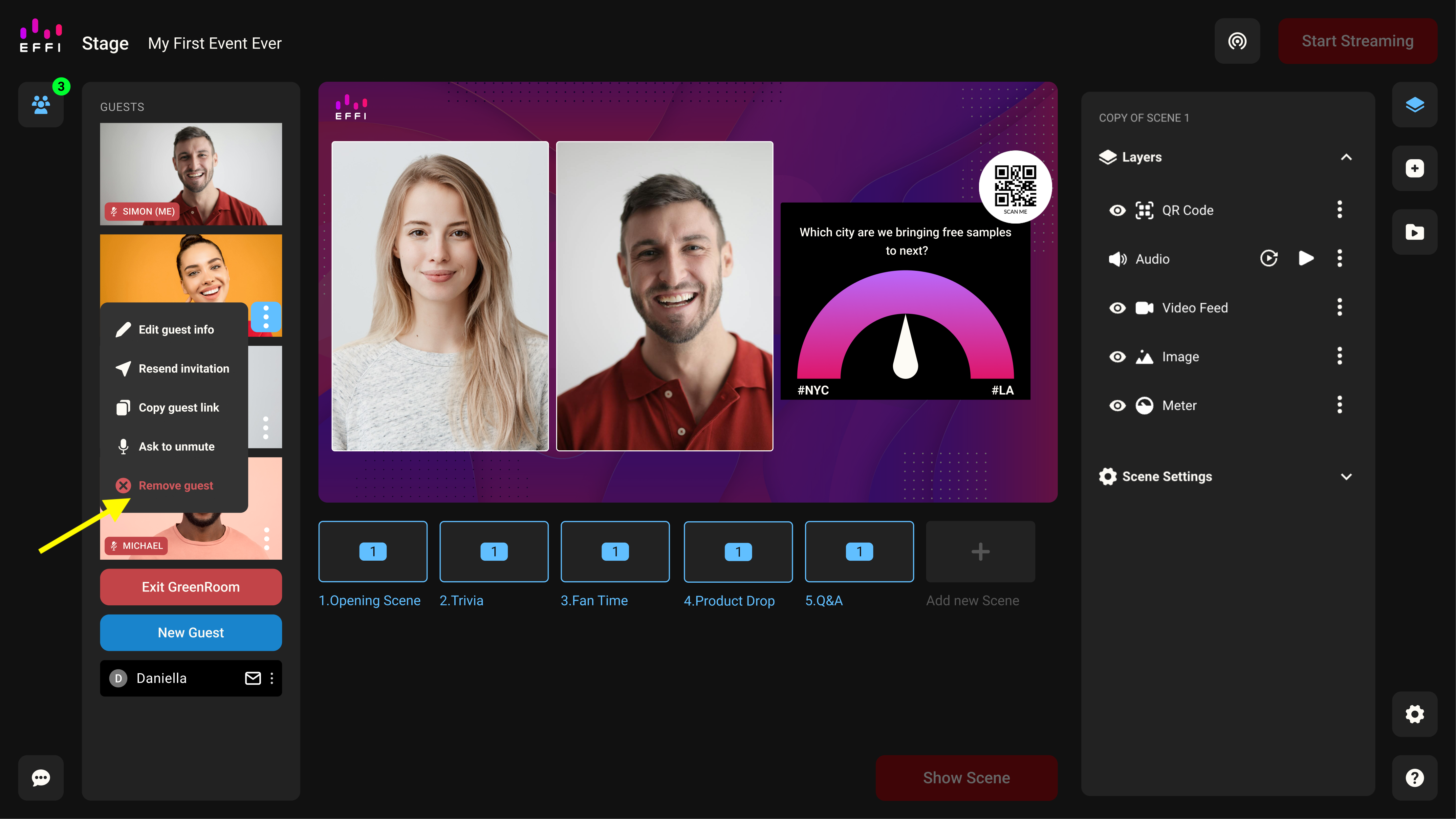
- Open the Guests panel.
- Find the guest you'd like to remove and click the menu on their entry.
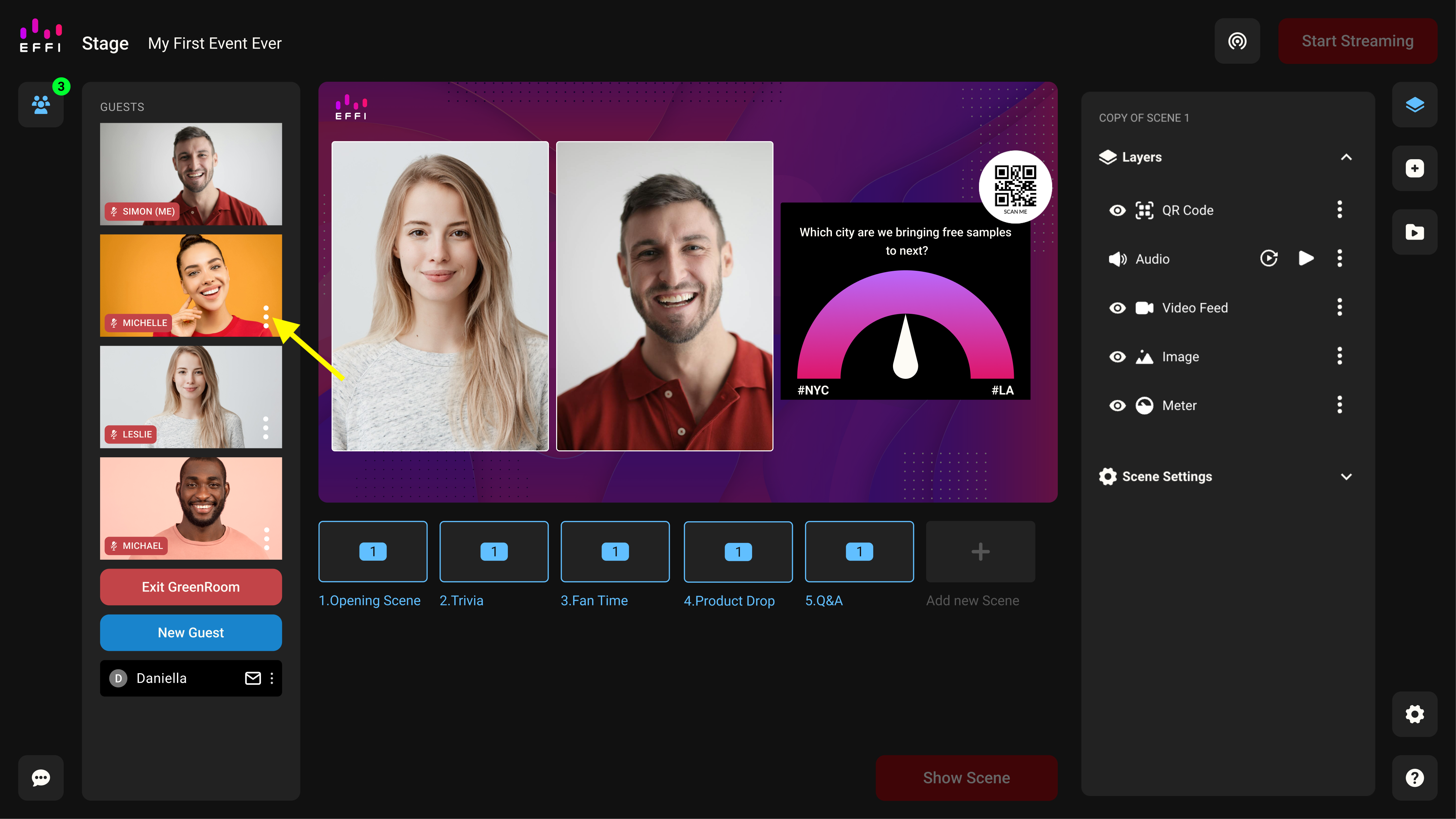
- Choose Remove Guest from the menu.
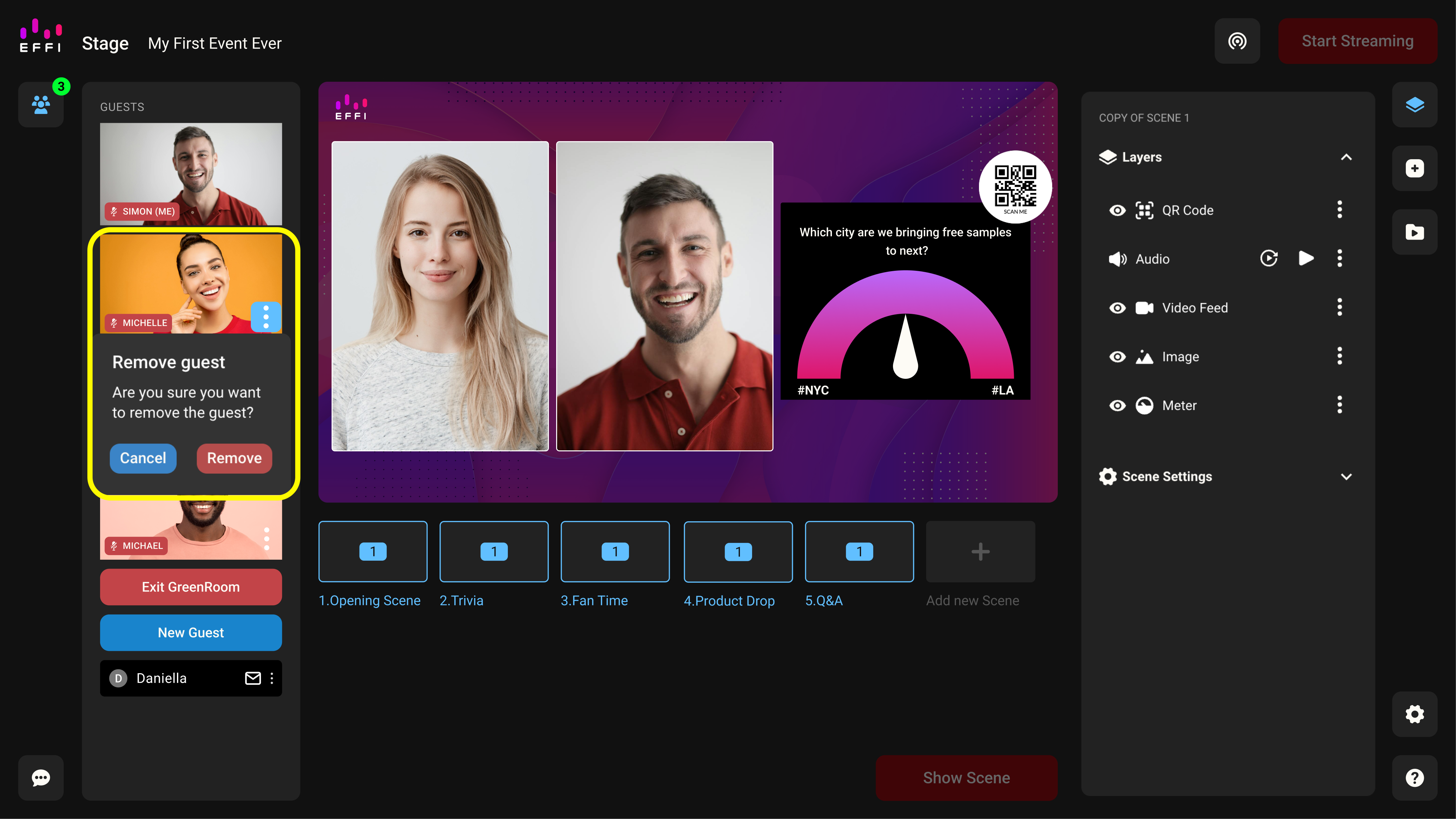
- Confirm by clicking Remove.
Was this article helpful?
That’s Great!
Thank you for your feedback
Sorry! We couldn't be helpful
Thank you for your feedback
Feedback sent
We appreciate your effort and will try to fix the article